Sharing
Cosmograph has two sharing models: publish a read-only graph by link, or grant a registered collaborator access to a saved project. Choose the option based on who should see the graph and whether the data is suitable for that audience.
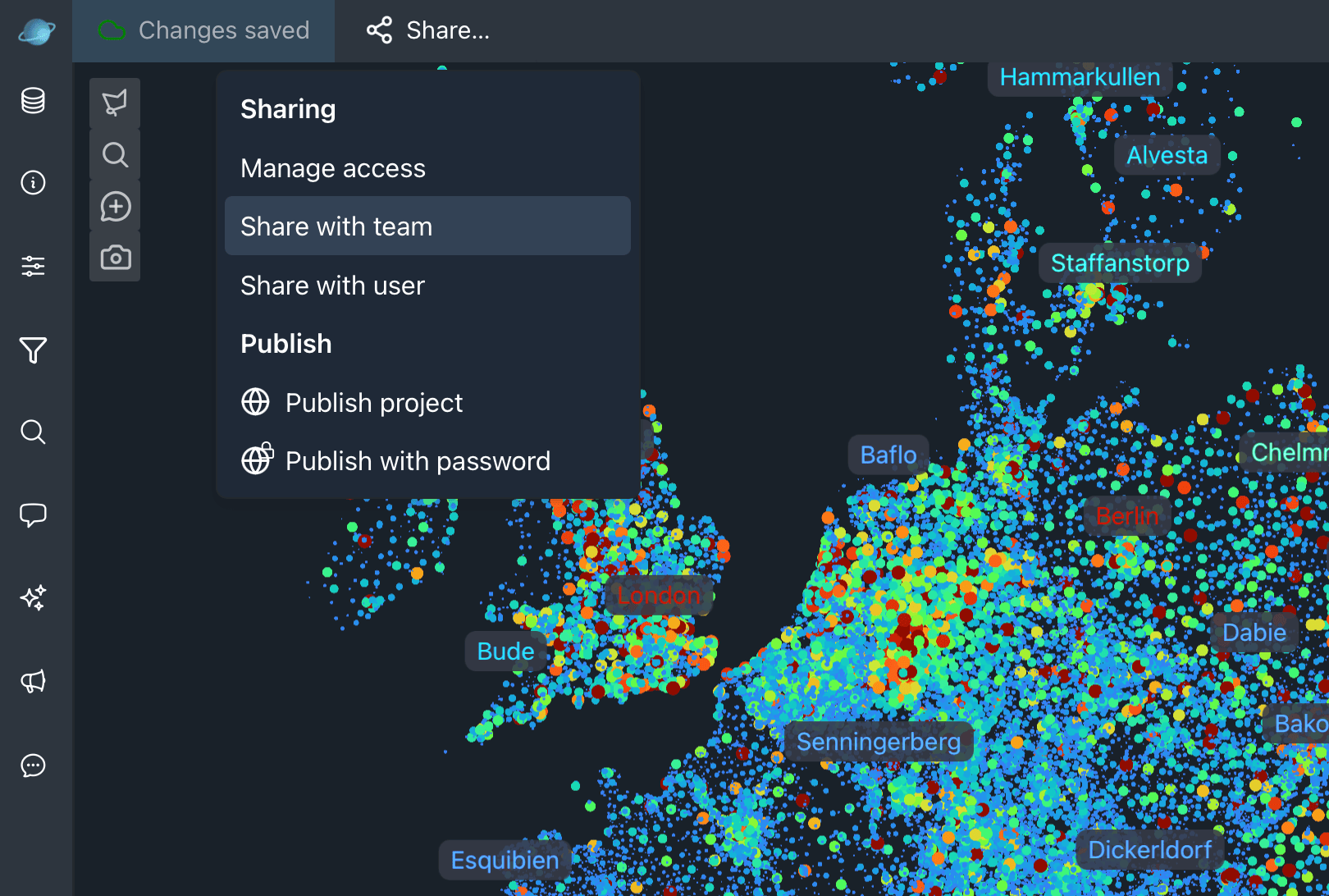
Choose a sharing option
| Option | Required access | Who can open it | Can the recipient edit the source project? | Searchable |
|---|---|---|---|---|
| Publish project | Any saved project | Anyone with the link | No | Yes, and it may appear in Showcase |
| Publish with password | Active paid access | Anyone with the link and password | No | No |
| Share with user | Pro-level access | One registered Cosmograph user | No | No |
| Share with team | Active Team access and active team billing | Current members of that team | No | No |
The project owner keeps edit and save control. Directly shared and team-shared collaborators can explore a graph and participate in Discussions, but the project opens read-only for them.
Before you share
Publishing copies the project configuration and the data needed to render the published graph. Anyone who can open that published link can inspect the graph and its available data.
Do not publish sensitive, personal, or confidential data unless every viewer who receives the link should be able to access it. Password protection restricts access by link and password; it does not turn the published graph into an editable private project.
Public publishing
Public publishing creates a read-only version of a saved project at a shareable URL.
- Open a project you own.
- Select Share… > Publish project.
- Copy the generated URL.
Anyone with the link can view the graph. Public projects are searchable and may be added to the Showcase gallery. Publishing creates a snapshot, so changes to the editable project do not appear until you publish again.
Use Unpublish from the same dialog to remove the public version.
Password-protected publishing
Password-protected publishing creates a read-only version that requires both the link and a password.
- Open a project you own with active paid access.
- Select Share… > Publish with password.
- Enter a password and publish the project.
- Send the URL and password through separate, appropriate channels.
The published version remains read-only and is not searchable. To change its password, unpublish it first and publish it again with the new password.
Direct user sharing
Pro-level access lets a project owner share a saved project with a specific registered Cosmograph user.
- Open a project you own and select Share… > Share with user.
- Enter the collaborator’s account email address.
- Select Share.
The recipient can open, explore, and discuss the project, but cannot modify or save the owner’s source project. Use Share… > Manage access to revoke the user’s access later.
Team sharing
Team owners and members of an actively billed team can share a project they own with that team.
- Open a project you own and select Share… > Share with team.
- Choose a team with active billing.
- Select Share.
Current team members can open the project read-only and join its discussions. Removing someone from the team removes their access to every project shared with that team. Use Manage access to revoke the entire team’s access to one project.
See Plans for member roles, seat billing, invitations, and inactive-team behavior.
Manage project access
For projects you own, Manage access lists direct users and teams that currently have project access. Revoke a user or team there when they should no longer be able to load the project.
Unpublishing is separate from project access management: use Unpublish to remove a public or password-protected version.